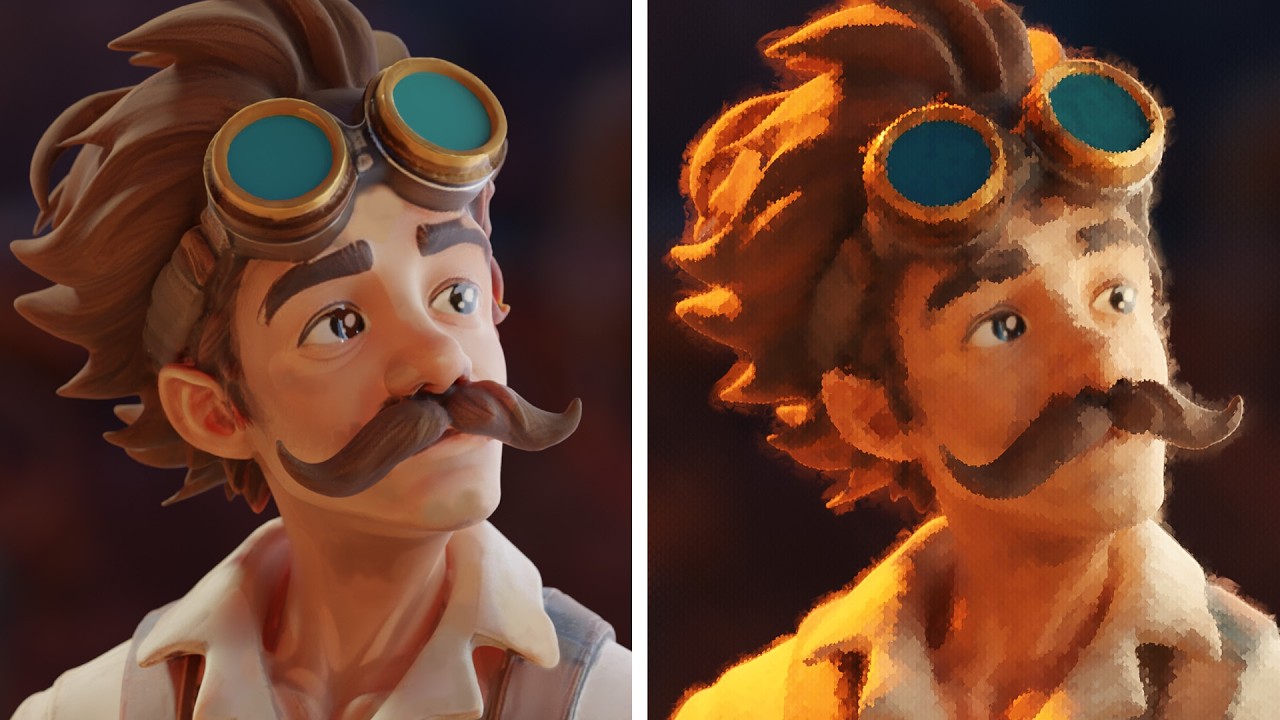
NEW Painterly Filter in Blender is AMAZING!
? Free Blender Tools & Assets ?
?️ MoGraph Toolbox (Free Tools)
https://superhivemarket.com/products/blender-mograph-toolbox
? Stop-Mo (Free Stop Motion Addon)
https://superhivemarket.com/products/stop-mo
? Pixel Kit (Free Pixel Art Addon)
https://superhivemarket.com/products/blender-pixel-kit
⚡ Dynamic VFX Pack (Free Sample Pack)
https://blendermarket.com/products/blender-dynamic-vfx---elemental-asset-pack?ref=434
? Crafty Asset Pack (Free Sample Pack)
https://blendermarket.com/products/crafty-asset-pack?ref=434
❤️ Support the Channel
Patreon
https://www.patreon.com/southernshotty
Skillshare
https://www.skillshare.com/r/user/southernshotty
────────────────────────────────────────
? Tag me in your artwork!
Instagram: https://www.instagram.com/southernshotty/
X (Twitter): https://twitter.com/SouthernShotty
@SouthernShotty
────────────────────────────────────────
NEW Painterly Filter in Blender is AMAZING!
Blender 5.2 quietly introduced a brand-new Painterly Filter in the Compositor that can transform your renders into beautiful painted artwork with just a few clicks. The default settings are a great starting point, but with a few simple adjustments you can push the effect much further and create production-ready painterly renders.
In this tutorial, I'll show you how to improve the built-in filter, separate your scene into layers for better-looking brush strokes, create painterly edges, preserve important details like eyes, and even animate the brush strokes so they stick to your characters.
In This Video You'll Learn
• How to access and download the new Painterly Filter
• The best settings for cleaner, more convincing results
• Understanding brush size, simplification, pooling, and sharpness
• Using position tracking to lock brush strokes onto moving objects
• Separating foreground and background into different paint layers
• Creating larger background strokes and detailed foreground strokes
• Adding painterly edges around characters
• Preserving facial details using AOV masks
• Using custom brush textures instead of the default canvas
• Animating brush strokes with simple driver expressions
• Why stepped animation works so well with painterly renders
Features Covered
• Blender 5.2 Painterly Filter
• Compositor Assets
• Position & Depth Passes
• AOV Masks
• Custom Brush Textures
• Multi-Layer Compositing
• Brush Stroke Animation
• Painterly Character Rendering
Chapters
00:00 – A Hidden New Feature
00:30 – Getting Started
01:10 – Improving the Results
04:05 – The Secret to Better Paint Strokes
06:50 – Layering Your Scene
09:20 – Adding More Detail
11:40 – Preserving Important Features
14:25 – Bringing It to Life
16:02 – Final Thoughts
?️ MoGraph Toolbox (Free Tools)
https://superhivemarket.com/products/blender-mograph-toolbox
? Stop-Mo (Free Stop Motion Addon)
https://superhivemarket.com/products/stop-mo
? Pixel Kit (Free Pixel Art Addon)
https://superhivemarket.com/products/blender-pixel-kit
⚡ Dynamic VFX Pack (Free Sample Pack)
https://blendermarket.com/products/blender-dynamic-vfx---elemental-asset-pack?ref=434
? Crafty Asset Pack (Free Sample Pack)
https://blendermarket.com/products/crafty-asset-pack?ref=434
❤️ Support the Channel
Patreon
https://www.patreon.com/southernshotty
Skillshare
https://www.skillshare.com/r/user/southernshotty
────────────────────────────────────────
? Tag me in your artwork!
Instagram: https://www.instagram.com/southernshotty/
X (Twitter): https://twitter.com/SouthernShotty
@SouthernShotty
────────────────────────────────────────
NEW Painterly Filter in Blender is AMAZING!
Blender 5.2 quietly introduced a brand-new Painterly Filter in the Compositor that can transform your renders into beautiful painted artwork with just a few clicks. The default settings are a great starting point, but with a few simple adjustments you can push the effect much further and create production-ready painterly renders.
In this tutorial, I'll show you how to improve the built-in filter, separate your scene into layers for better-looking brush strokes, create painterly edges, preserve important details like eyes, and even animate the brush strokes so they stick to your characters.
In This Video You'll Learn
• How to access and download the new Painterly Filter
• The best settings for cleaner, more convincing results
• Understanding brush size, simplification, pooling, and sharpness
• Using position tracking to lock brush strokes onto moving objects
• Separating foreground and background into different paint layers
• Creating larger background strokes and detailed foreground strokes
• Adding painterly edges around characters
• Preserving facial details using AOV masks
• Using custom brush textures instead of the default canvas
• Animating brush strokes with simple driver expressions
• Why stepped animation works so well with painterly renders
Features Covered
• Blender 5.2 Painterly Filter
• Compositor Assets
• Position & Depth Passes
• AOV Masks
• Custom Brush Textures
• Multi-Layer Compositing
• Brush Stroke Animation
• Painterly Character Rendering
Chapters
00:00 – A Hidden New Feature
00:30 – Getting Started
01:10 – Improving the Results
04:05 – The Secret to Better Paint Strokes
06:50 – Layering Your Scene
09:20 – Adding More Detail
11:40 – Preserving Important Features
14:25 – Bringing It to Life
16:02 – Final Thoughts

SouthernShotty
Learn all things Blender 3D with a focus on characters, animation, rigging, and motion graphics!...